
Quick Summary
Tax audit form is used to report details of a tax audit conducted under Section 44AB of the Income-tax Act.

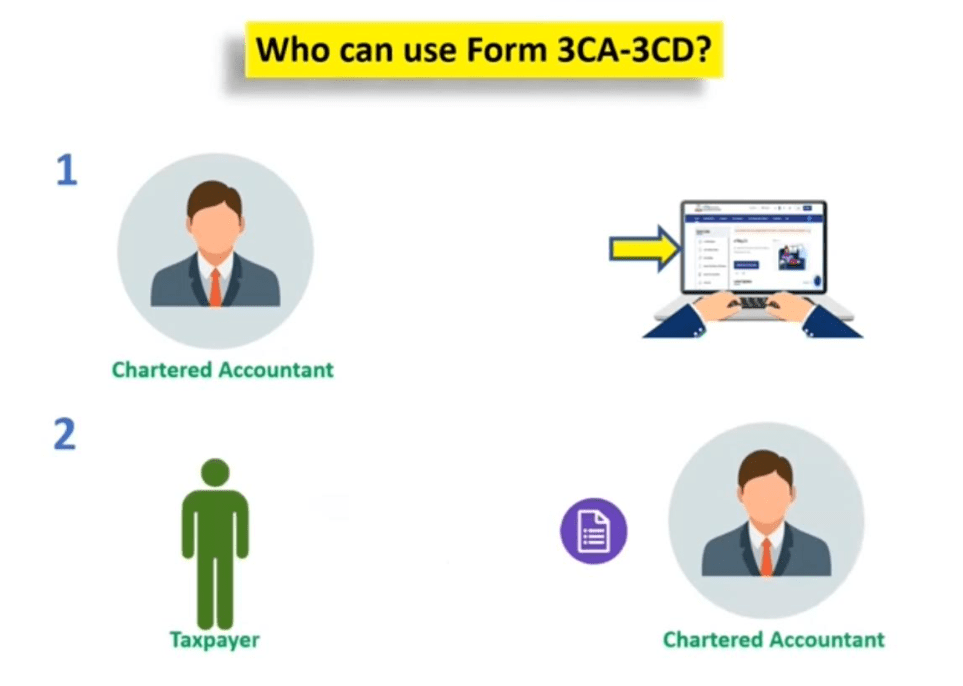
Who can use Form 3CA-3CD?
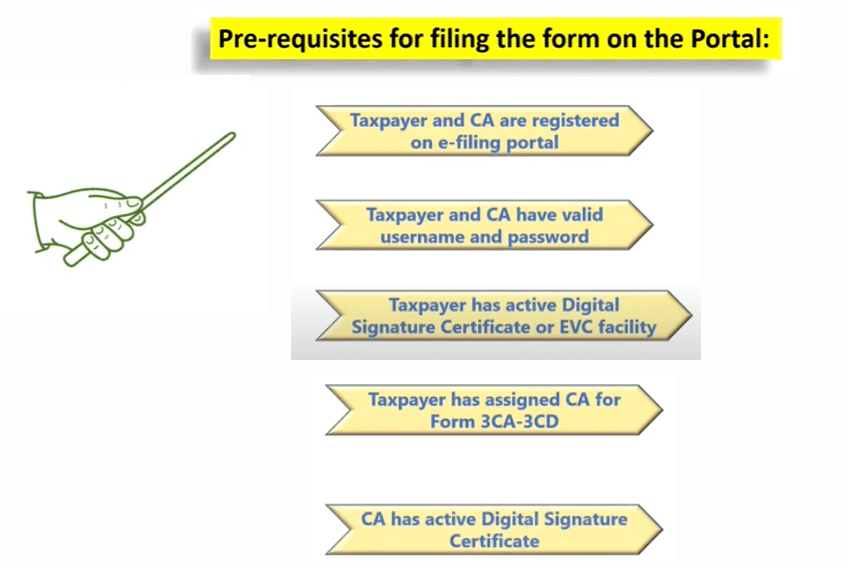
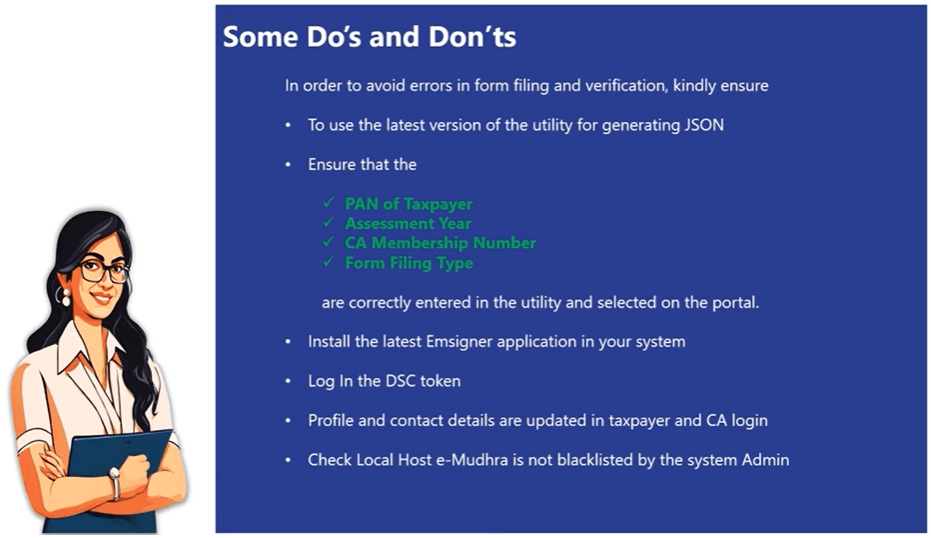
Pre-requisites For Filling The Form On The Portal
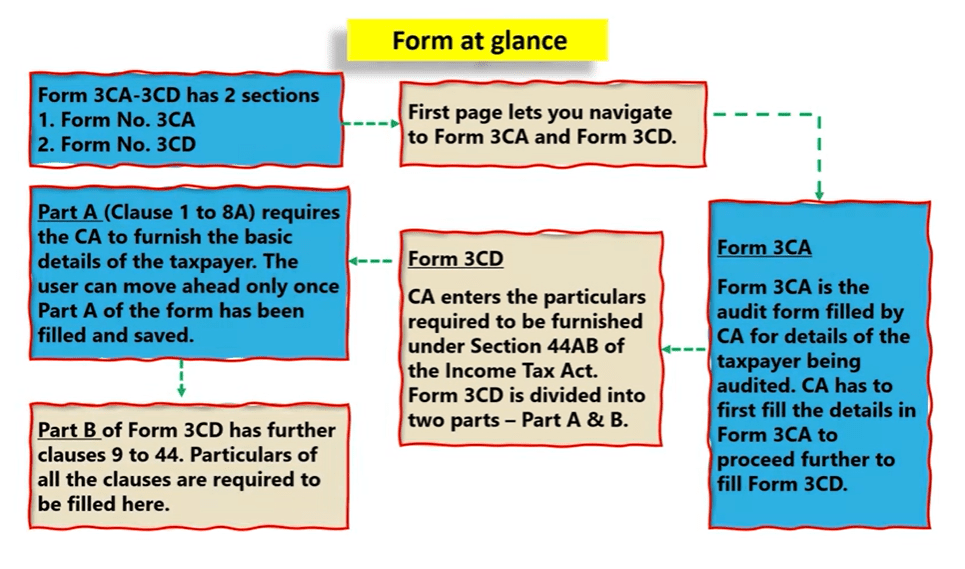
Form At Glance
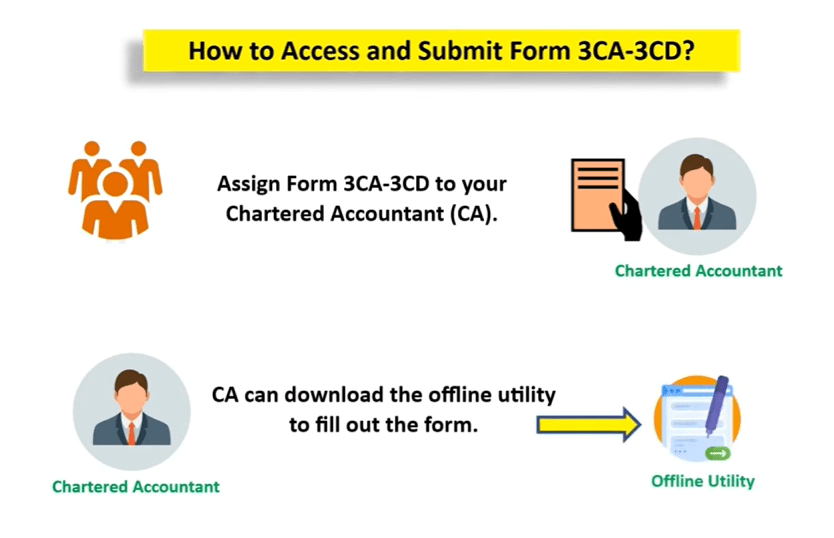
How To Access And Submit Form 3CA-3CD?
How to Assign Form to Chartered Accountant?
- First taxpayer need to visit the e-Filing portal.
- Login using your user ID and password.
- On the dashboard, click e-File > Income Tax Forms > File Income Tax Return.
- Select Form 3CA-3CD and click file now.
- Now to assign CA, taxpayers need to enter the required details in the form.
- In the Assign Chartered Accountant (CA) section, input the CA's details. Click Continue to proceed.
- Upon successful assignment, a confirmation message with a Transaction ID will appear. Note this ID for future reference.
Note:
- If a CA is assigned by you already, details of Form 3CA-3CD pending with CA for filling or acceptance will be displayed.
- If CA is not assigned, you can assign a CA by choosing the existing list of previously assigned CA's from the link existing CAs.
- In case there are no CAs added, you can add a CA by clicking Authorized Partner on Dashboard > Authorized Partners > My CA > Add new CA.
How Form is accepted and filed by the Chartered Accountant?
- CA have to login with User Id Password
- On dashboard, click pending action > Worklist.
- All the pending for acceptance will be visible on the page.
- In the for Your action, CA can click accept or reject.
- Once its accepted, a successful message will be displayed with the a Transaction ID. CA can note this ID for future reference.
- Then again go the worklist > Pending Action and click continue to file Form 3CA-3CD
- After clicking continue, CA can download the offline utility.
- With this offline utility a Chartered Accountant can fill the form and submit.
- If you do have UDIN can select the box "I do not have UDIN / I will update UDIN later" and click proceed.
- Once its accepted after e-verification, a successful message will be displayed with the a Transaction ID.
Acceptance by Taxpayer
- Now taxpayer need to login again.
- On the dashboard, click on pending action > worklist.
- Then click Accept on Form Pending for Acceptance.
- Once e-verified with DSC or Aadhaar OTP, a successful message with Transaction ID will be displayed.
Related Articles
Tax Audit Report: Changes in Tax Audit Reporting Clauses
Tax Audit Applicability: Criteria and Thresholds You Should Know
Tax Audit: 5 Important GST Related Clause











 CAclubindia
