
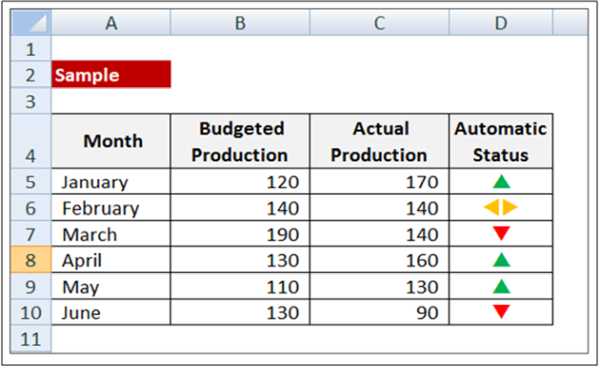
Case Study: Indicate “Automatic Status” based on whether Actual Production exceeds/equals/trails the Budgeted Production. Sample provided in Picture 1.
Application Areas: Budget vs. Actual Comparison, Variance Analysis
Techniques required for Solution:
(A) Nested IF statement
(B) Symbol-based Font – Wingdings 3
(C) 3 times Conditional Formatting.
[Picture 1]
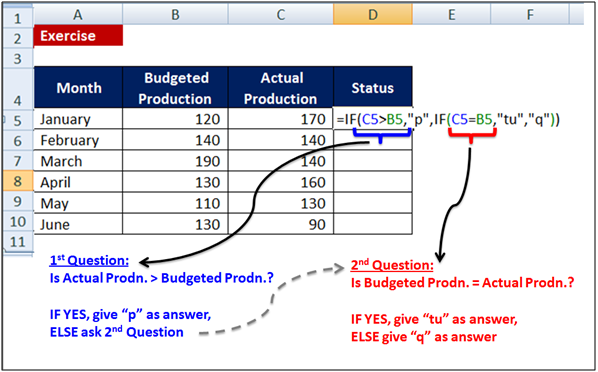
Solution Step 1: Nested IF Statement to get answer as:
“p” (if Actual > Budget),
“tu” (Actual = Budget) and
“q” (Actual < Budget)
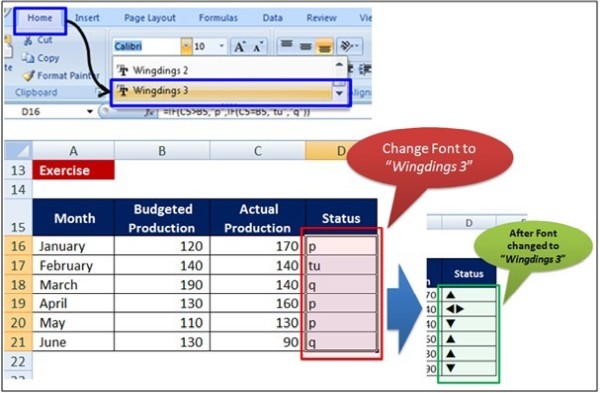
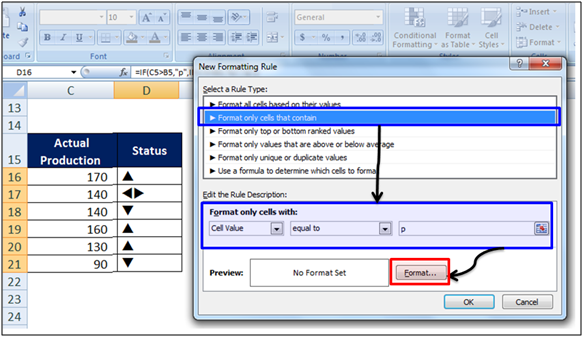
Solution Step 2: Convert the resulting answer (p, tu,q) in Font – Wingdings 3. This will change the presentation to symbols.
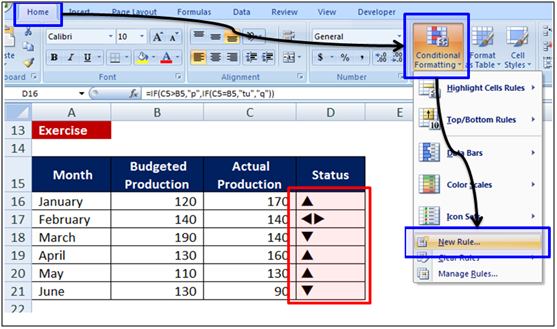
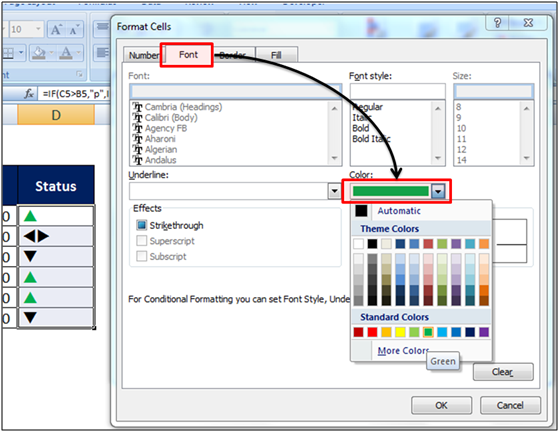
Solution Step 3: Select the solution (“Status”) > Home tab > Conditional Formatting.
p – Format to Font Color Green;
tu – Format to Font Color Orange;
q – Format to Font Color Red
Note: Conditional formatting has to be applied 3 times.
. Click Here to download - Excel Sample File
· Watch CA. Rishabh Pugalia’s Videos on Advanced Excel – Click Here
· Attend his 1-day workshop on “Advanced Excel for Data Analytics and MIS Reporting” in New Delhi on 20th April 2013 – Click Here











 CAclubindia