
Here I will talk about how to format cells in excel with trailing dots. For example, you have a list of names of your clients. I want to add dots (.) so that it looks good and is also self-adjusting. Let’s look at this example.

I have the list of client names and I want to add dots (.) so that it looks good.
You may have questions running in your mind regarding this technique of formatting cells in excel
– How will we achieve this?
– Will we go ahead and manually put dots (.)?
– What will it happened if I delete few letters from a client’s name?
– Will it be self-adjusted?
Solution:
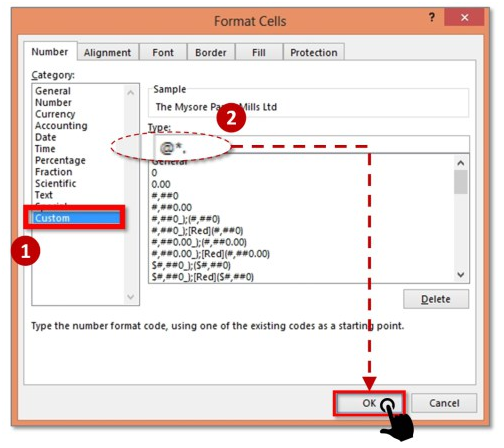
1. Select your range where you want to put dots (.). You can select the entire column and then press Ctrl +1 and dialog box format cells in excel will open.
2. Then go to custom and in place of general type @*.
As soon as you will press ok you will see the trailing dots are added and it is self-adjusted. If you want to test then delete few letters from a client’s name and then check. You can also change the width of the column. The dots will be self-adjusted.
Recommended course to learn MS Office tools like Advanced Excel, Charts, PowerPoint Ninja, VBA Macros and Word for Finance Professionals.
Click here: /coaching/584-ms-office-bundle.asp
Canonical link: http://blog.yodalearning.com/2015/06/26/5-powerful-tricks-to-format-cells-in-excel/











 CAclubindia