
(excel addin) convert number into indian formats

6776 views 10 replies


Download Excel Addin to convert numbers into Indian Rupees format i.e thousands,lac,Crore

for using this formula ,you have to first install  this addin in excel file

formula is

=Indian(A1)

For example 

cell A1 = 123456789

put in any cell where you want the number in words

=Indian(A1)

you will get

Rupees Twelve Crore Thirty Four Lac Fifty Six Thousand Seven Hundred Eighty Nine Only


Click Here to Download


Replies (10)

Thanks for the info sir.......


Thanks a lot and keep sharing......

Thanks Nabeel

nice...........


thank you

Thank you 


How to install this formula in excel file  ?

Rakesh Rajak


Originally posted by : Rakesh Rajak

How to install this formula in excel file  ?

Rakesh Rajak


This is addin

You will find under tools........which version of excel you are using?

Sir,

I am Using MS Office Excel 2007

Rakesh Rajak


Originally posted by : Rakesh Rajak

Sir,

I am Using MS Office Excel 2007

Rakesh Rajak


When you first install Excel 2007, the built-in add-in programs included with Excel 2007 are not loaded and therefore are not yet ready to use. To load any or all of these built-in add-in programs, follow these steps:

  1. Click the Office button and then click the Excel Options button.

    The Excel Options dialog box appears.

  2. Click the Add-Ins tab.

    The Add-Ins tab lists all the names, locations, and types of the add-ins to which you have access.

  3. At the bottom, select Excel Add-Ins from the Manage drop-down box and click Go.

    Excel opens the Add-Ins dialog box showing all the names of the built-in add-in programs you can load.
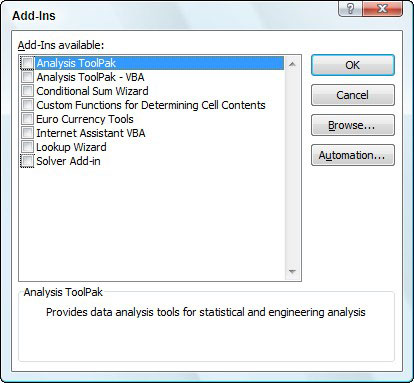
    Activating built-in add-ins in the Add-Ins dialog box.
    Activating built-in add-ins in the Add-Ins dialog box.
  4. Click the check boxes for each add-in program that you want loaded in the Add-Ins Available list box.

    Click the name of the add-in in the Add-Ins Available list box to display a brief descripttion of its function at the bottom of this dialog box.

  5. Click OK.

    An alert dialog box appears, asking you if you want to install each selected add-in.

  6. Click the OK button in each alert dialog box to install its add-in.

After activating add-ins in this manner, Excel automatically places command buttons for the add-ins in either an Analysis group on the Ribbon’s Data tab or in a Solutions group on the Formulas tab, depending on the type of add-in. In some cases, Excel inserts an Add-Ins tab on the Ribbon.

If you end up never using a particular add-in you’ve loaded, you can unload it (and thereby free up some computer memory) by following the previously outlined procedure to open the Add-Ins dialog box and then clicking the name of the add-in to remove the check mark from its check box. Then click OK.


may this will guide you

first download the addin and use the browse tap as shown in picture



unable to download the file 


please help to download the file


CCI Pro

Leave a Reply

Your are not logged in . Please login to post replies

Click here to Login / Register  

Company
ARTICLESHIP 09 June 2026
Article Trainee

Numbertree LLP

Mumbai

CA Inter

View Details
Company
ARTICLESHIP 23 May 2026
Article Assistants

Acupro Consulting

Gurgaon

CA Inter

View Details
Company
29 May 2026
Finance Head

Bhawar Sales Corporation

Chennai

Graduate (Any)

View Details
Company
24 May 2026
Accounts & Tax Executive

PARAS KHURANA AND CO

New Delhi

B.Com

View Details
Company
ARTICLESHIP 04 June 2026
Article

Rakhecha & Co.

New Delhi

CA Inter

View Details
Company
Featured 27 May 2026
Lead Conversion Executive / Sales Closing Executive

SMJ global advisors pvt ltd

New Delhi

B.Com

View Details
Company
27 May 2026
Audit Assitant

Virender K Gupta and Co

New Delhi

B.Com

View Details
Company
ARTICLESHIP 20 June 2026
Articleship

RB KESHRI & CO

Mumbai

B.Com

View Details