
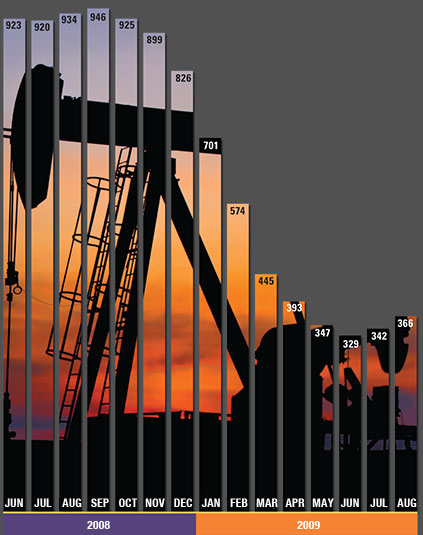
How to create a column chart with background image in excel

Excel 2634 views 6 replies

How to create a column chart with background image in Excel ?


How to create a column chart with background image in Excel ?

Step 1: Arrange the data.

Arrange the data like this.
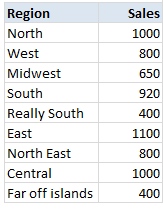
Arrange data like this - column chart with background image in Excel

Step 2: Create a column chart

Select the data, insert a stacked column chart (why not a regular column chart?, you will understand in a minute).

You will get this.
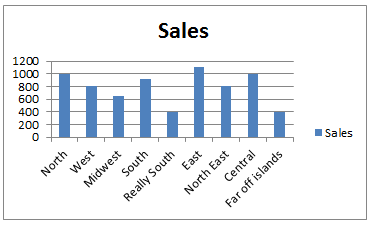
Create a simple column chart -  - column chart with background image in Excel

Step 3: Set up image as background for chart’s plot area

Select chart’s plot area. Press CTRL+1.

Choose picture or texture fill and select the file with image you want.
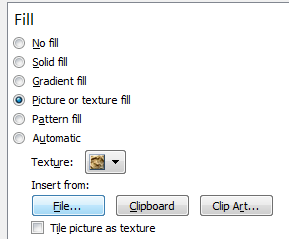
Fill chart's plot area with an image -  - column chart with background image in Excel

Step 4: Add dummy max-series

In your data, add a column which gives the difference between column values & axis maximum. For our test data, I choose 1,400 as axis maximum, so the dummy series values are,
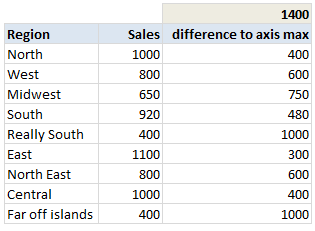
Dummy data series -  - column chart with background image in Excel

Now add this series to chart.

Step 5: Format the chart

Now, we are almost done. Our chart looks like below. We just need to format it.
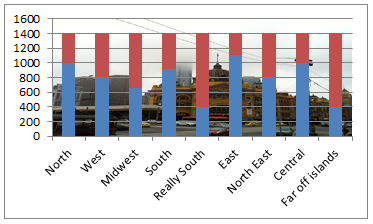
Final chart before formatting -  - column chart with background image in Excel

  1. Select the columns (any series) and press 1
  2. Adjust gap widtth to 0%
  3. Fill the dummy series with a chosen background color.
  4. Make the data series transparent (fill color = no color)
  5. Add borders to data series. Border color should be same as background color.
  6. Adjust the border thickness to 3pts.
  7. Adjust axis maximum to 1,400 (or any value you have selected in Step 4).
  8. Remove grid lines, legend and any un-necessary chart fluff.

Your column chart with background image is ready!
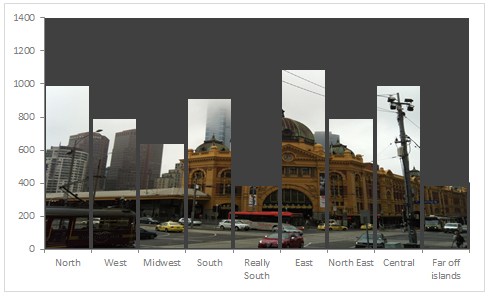
Finalized column chart with background image made using Excel


Attached File : 304961 1196792 column chart with background.xlsx downloaded: 230 times
Replies (6)

WOW.. AMAZING .

KEEP SHARING. :)


Originally posted by : Divya Shah

WOW.. AMAZING .

KEEP SHARING. :)


Thank You sir for this lovely educative content.

THAKS ITS GREAT THING TO LEARN !!!!!!!!!!!!

very useful... thanxx for sharing...

yes thanx for sahring 


CCI Pro

Leave a Reply

Your are not logged in . Please login to post replies

Click here to Login / Register  

Company
Featured 13 April 2026
GST CONSULTANCY

Abhishek G Agrawal & Co.

Korba

CA Final

View Details
Company
Featured 28 March 2026
Accountant

Ashok Amol & Associates

New Delhi

B.Com

View Details
Company
Featured 14 March 2026
Associate CA

N N V Satish&co

Hyderabad

CA

View Details
Company
Featured 14 April 2026
GST CONSULTANT

Abhishek G Agrawal & Co.

Korba

CA Final

View Details
Company
Featured 28 March 2026
CA Final

Ashok Amol & Associates

New Delhi

CA Final

View Details
Company
Featured 12 March 2026
Customer Relationship Executive

TAXLET

Calicut

B.Com

View Details
Company
Featured 14 March 2026
Article Trainee

N N V Satish&co

Hyderabad

CA Inter

View Details
Company
Featured 19 March 2026
Article Assistant

Gupta Sachdeva & Co. Chartered Accountants

New Delhi

CA Final

View Details