Refund Statement 03 error

3812 views 28 replies

Statement Number 3 for uploading and shows an error

 "Password Protected" . .

"The cell or chart that you are trying to change is proctected and therefore read only "

Please download the modified file and easily create the json file . This Excel file is unprotected for editing . The issues have been now resolved..
You can subscribe my Youtube Channel
https://www.youtube.com/shijoykoratty
for more videos. The link also provided at the bottom for downloading the modified file.
 

https://drive.google.com/file/d/1VhGf_fIdc-50C1CrPPbR-UPLOFHfMKn6/view?usp=sharing

Shijoy James

ASTO

SGST Department

Kozhikode, Kerala

OFFLINE EXCEL FILE FOR EXPORTERS FOR UPLOADING STATEMENT 3 ERROR SOLVED


This file is recreated for generating statement 3 for GST Export / Zero rated supply refund.  Kindly

Recreated by clearing errors:

 Shijoy James ASTO,

SGST Department,

Kozhikode, Kerala

Procedure for creating the JSON file.

1. Open the Excel File. Enter the GSTIN and Month and year for refund in the respective column. Month and year in mmyyyy format. For eg. if the refund applied month is August 2017, it should be entered as 082017.

2. Enter the data from Sl. No. 1 onwards. Sample data has been entered here for your reference. Date should be entered in dd-mm-yyyy format. If your date format is different, please change it through Control Panel> Regional and Language> Date Format> British Date Format. The "Port Code", "EGM Reference Number" etc should be entered in correct format. Select Goods or Service from the dropdown (G/S).

3. Click "Validate and Calculate" button. If any error shows in the extreme right  "Error" column, rectify the mistake.

4. Click "Create File to Upload" and select the directory of your PC to download the JSON file. Name may be like "ABCAugust.json" etc.

Please RENAME the file extension of the JSON file created to JSO and Save as "All Files"

For eg. "AbcAugust.json  to  "AbcAugust.jso"

5. The go online in GST CP, (gst.gov.in) and login.

6. Goto Services> Refund  .. Select the application for the corresponding month for which statement created as JSO file.

7. Browse and upload the file. Click Back button after upload . Then verify whether it has been uploaded properly. The data will be auto filled from the uploaded JSO file.

Thanking you

Shijoy James

Replies (28)

Statement Number 3 for uploading and shows an error

 "Password Protected" . .

"The cell or chart that you are trying to change is proctected and therefore read only "

Please download the modified file and easily create the json file . This Excel file is unprotected for editing . The issues have been now resolved..
You can subscribe my Youtube Channel
https://www.youtube.com/shijoykoratty
for more videos. The link also provided at the bottom for downloading the modified file.
 

https://drive.google.com/file/d/1VhGf_fIdc-50C1CrPPbR-UPLOFHfMKn6/view?usp=sharing

Shijoy James

ASTO

SGST Department

Kozhikode, Kerala

OFFLINE EXCEL FILE FOR EXPORTERS FOR UPLOADING STATEMENT 3 ERROR SOLVED


This file is recreated for generating statement 3 for GST Export / Zero rated supply refund.  Kindly

Recreated by clearing errors:

 Shijoy James ASTO,

SGST Department,

Kozhikode, Kerala

Procedure for creating the JSON file.

1. Open the Excel File. Enter the GSTIN and Month and year for refund in the respective column. Month and year in mmyyyy format. For eg. if the refund applied month is August 2017, it should be entered as 082017.

2. Enter the data from Sl. No. 1 onwards. Sample data has been entered here for your reference. Date should be entered in dd-mm-yyyy format. If your date format is different, please change it through Control Panel> Regional and Language> Date Format> British Date Format. The "Port Code", "EGM Reference Number" etc should be entered in correct format. Select Goods or Service from the dropdown (G/S).

3. Click "Validate and Calculate" button. If any error shows in the extreme right  "Error" column, rectify the mistake.

4. Click "Create File to Upload" and select the directory of your PC to download the JSON file. Name may be like "ABCAugust.json" etc.

Please RENAME the file extension of the JSON file created to JSO and Save as "All Files"

For eg. "AbcAugust.json  to  "AbcAugust.jso"

5. The go online in GST CP, (gst.gov.in) and login.

6. Goto Services> Refund  .. Select the application for the corresponding month for which statement created as JSO file.

7. Browse and upload the file. Click Back button after upload . Then verify whether it has been uploaded properly. The data will be auto filled from the uploaded JSO file.

Thanking you

Shijoy James

it is not working Mr. Shijoy James.
 

You contact your respective GST facilation centre for rectifying your problem.

You can contact with the given no. 

Mr Tarun has solved my query on this 7503212723

Thanks 

I have download the GST_RFD_SMT03 file In GST Portal,since it is pass word protected

Please help men In this matter Urgently

You raise a greviances on gst portal.

ANYBODY FACING PROBLEM FOR UPLOADING JSON FILE IN RFD 01 MAY CONTACT US: ETAXCOCHIN @ GMAIL.COM

Hi Sir,

I am facing the problem to upload JSON file and it is showing as below error.

Kindly, inform what has to be done and even the Excel sheet in the portal is asking for a password.

Regards

Hi, 

Can you tell me the password for Statement 3 for refund application.

Thanks n Regards

Sridevi

Please update  MS Office to 2010 and download the offline utility from GST portal, for opening the sheet no password required 

Latest version uploaded

please download the file from the following link

https://drive.google.com/file/d/1VhGf_fIdc-50C1CrPPbR-UPLOFHfMKn6/view?usp=sharing

SHIJOY JAMES

ASTO

SGST DEPARTMENT

KOZHIKODE KERALA

Dear Sir, While Validating export invoice we get the following error message

Invoice No.                                     Error details

EX06/2017-2018    Invoice type does not match Invoice type as mentioned during returns filing

Please give your valuable suggestion to rectify the same.

Thanking you,

K.Mohan

Springs India

Email id :springsindiaguindy @ gmail.com


I tried to convert Statement-3 in Excel of GST refund to Json file. but, While Clicking Validate & Calculate error will formed. error showing that "Either invalid date or Please enter the Invoice or Doc date in dd-mm-yyyy format". Please reply

Dear GST stakeholders

The refund offline utility as downloaded from GST portal showing errors as follows
 
Error 1: Either invalid date or Please enter the Invoice or Doc date in dd-mm-yyyy format
Error2: SI.No with Duplicate Entry in row Number
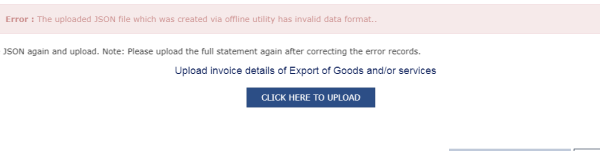
Error3 : The uploaded JSON file which was created via offline utility has invalid data  format.
.
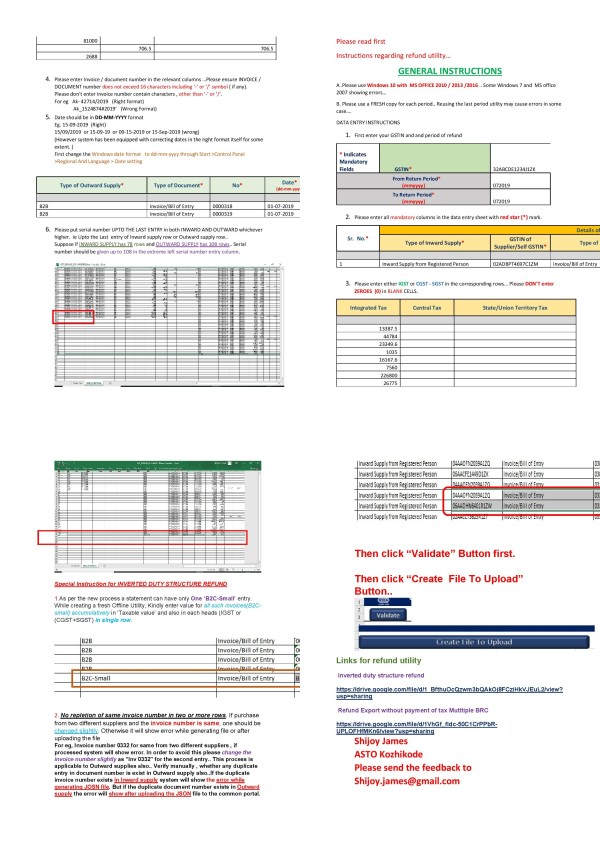
Even though the data entered is correct..Lot of complaints and request in this regard have been received .. I have made a little modification in the VBA program code and rectified the common  errors .. 
 
Requesting the stakeholders (tax payers, practitioners, accountants, professionals etc. )may use this modified tool..
 
 Please use MS Office 2010/13/16 for using the Excel VBA based utility..
 
 Links for refund utility
 
 Inverted duty structure refund
 
 
 Refund Export without payment of tax Mutltiple BRC 
 
 
Feedback and errors are welcome
Shijoy James
ASTO
Kozhikode Kerala


CCI Pro

Leave a Reply

Your are not logged in . Please login to post replies

Click here to Login / Register