
Objective: To insert blank row after every line item in Excel (MIS Reporting)

Excel Technique used: “Dummy” Serial Number and SORT
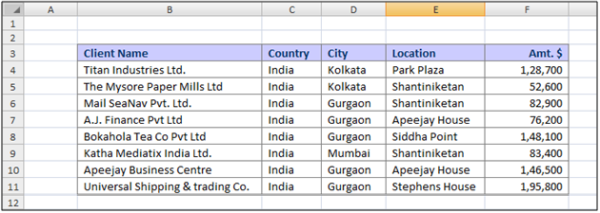
Step 1: Create a new column (refer Yellow cell in Column G) and write 1 and 2

Step 2: Select both 1 and 2 and drag-down the cells jointly so that a series can be generated
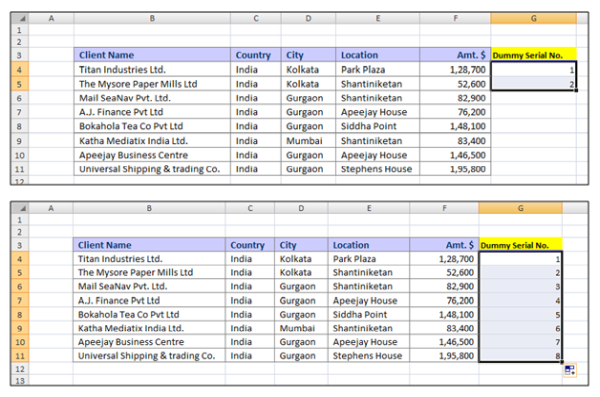
Step 3: Copy the generated list and paste it once again below the original list
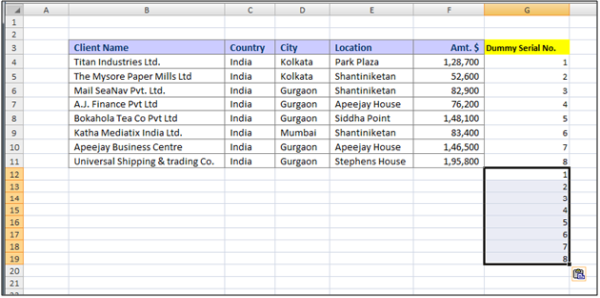
Step 4: Select the entire dataset
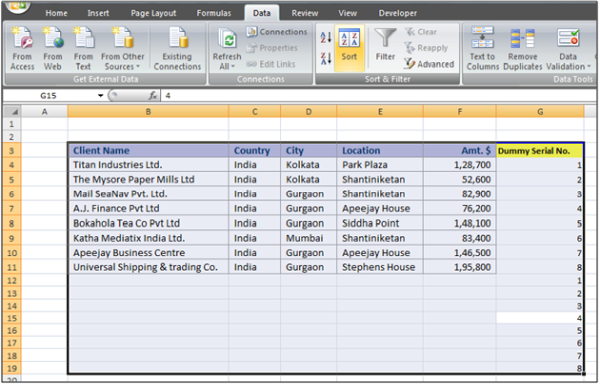
Step 5: Go to DATA tab – SORT button
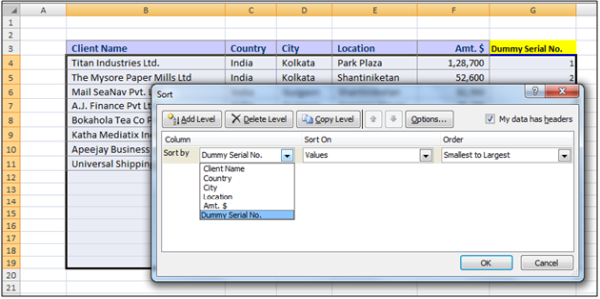
Step 6: Sort the data based on the Column – “DUMMY Serial No.” –Smallest to Largest

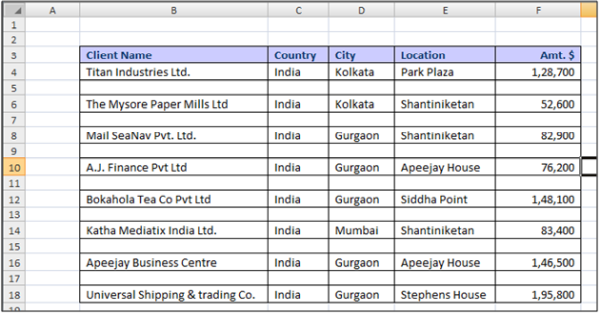
Step 7: Delete Column G and format the table with Borders
To read CA. Rishabh Pugalia’s other articles on Excel tricks on CAClubindia.com, click here
[/articles/article_display_list_by_member.asp?member_id=997936]

To attend his LIVE workshop in Kolkata or Mumbai, Click here

To subscribe to CA. Rishabh Pugalia’s Online Training Program at CAClubinda.com, click here:
[www.caclubindia.com/coaching/excel.asp]


64427 Views 2 Likes Comment   Share Students   Report


About the Author

Trainer

/coaching/excel.asp


Comments


Related Articles


Loading


Popular Articles


CCI Pro

CCI Articles

submit article


Company
ARTICLESHIP 28 June 2026
Article Assistant

Sharma Chetan And Company

Gurgaon

CA Inter

View Details
Company
ARTICLESHIP 18 June 2026
Article Assistance

RB KESHRI & CO.

Mumbai

CA Inter

View Details
Company
ARTICLESHIP 24 June 2026
ARTICLE ASSISTANT

BHUPINDER SHAH AND COMPANY

New Delhi

CA Inter

View Details
Company
20 June 2026
Chartered Accountant

ANV & Company

New Delhi

CA

View Details
Company
25 June 2026
AUDIT MANAGER

JDAS & ASSOCIATES

New Delhi

CA

View Details
Company
22 June 2026
Accountant

Global Image Technologies Private Limited

New Delhi

MBA

View Details
Company
ARTICLESHIP 30 June 2026
2 posts Article assistant and Articleship completed students

Chirag N Shah & Associates

Mumbai

CA Inter

View Details
Company
12 June 2026
Accounts & Taxation Executive

Winshine Financial Services

Mumbai

CA Inter

View Details