Subscribe to Email


Discussion > Others > others > Convert PPT to Video     Post New Topic

Pages : 1 2


There are 11 Replies to this message


Ravi kumar...A Big Fan of Admin
Article Assistant
[ Scorecard : 601]
Posted On 16 July 2009 at 13:16 Report Abuse

Report Abuse / Feedback


Name
Email
Subject
Message

Verify Verify Code 
  

Note : The above form can be used to intimate the moderators regarding abuse of the platform.


PPT To Video Scout tutorial:
Converting PowerPoint presentation into video movie using PPT To Video Scout

This page describes how to use PPT To Video Scout to convert PowerPoint presentation into video file (AVI). AVI video files can be played by most mobile devices, hardware dvd players so if you want to show your PowerPoint presentation on computers or mobile devices where PowerPoint is not installed or not supported then you should convert presentation into AVI video file.

Since version 1.20 PPT To Video Scout is capable of converting into MPEG, VideoCD, xDIV, DivX movies.

This tutorial will guide you through PPT to AVI,MPEG video conversion process. PPT To Video Scout integrates itself into PowerPoint so you can convert PPT into AVI or MPG video by simply using File menu in PowerPoint.

First download and install PPT To Video Scout

Now start PowerPoint and open presentation:

PowerPoint main window

Now simply open File menu and select "Convert To AVI" command as shown below:

PowerPoint File menu

PowerPoint will start Bytescout PPT To Video conversion wizard:

Bytescout PPT To Video Scout welcome page

Click Next button to enter next page

PPT To VIdeo Scout started with presentation files selected

Change output video file name and video format (if required) and click Next button

Select conversion mode and click Next

This page provides settings for slide show mode for presentation conversion. You can change settings to automatically change slides after predefined delay so you can automate entire conversion process.

Click Next button to switch to next page

Change default resolution (width and height) and frame rate for output video file (if needed):

Select frame rate and resolution

Click Next to get Audio Recording page options:

Sound recording options

Uncheck Sound Recording checkbox if you don't want to record sound from converted presentation.

Please note that you should not run another sound players during conversion because their sound output can be captured as well.

Click Next to start conversion:

PPT To Video Scout now will convert your PowerPoint presentation into video:

Converting powerpoint presentation to the video file

Click Next to show next slide

When conversion is done you'll see final page with:

Final page with information about produced video file

Click Close and program will launch produced video file in default video player:

Video converted from powerpoint presentation

That's all!

More Information Download Free Trial Buy Now


Share This


Subodh

[ Scorecard : 390]
Posted On 16 July 2009 at 14:02

Very informative


Member (Account Deleted)
[ Scorecard : 13212]
Posted On 16 July 2009 at 14:18

Thanks for this useful information


wpreherb
kjhkjhl
[ Scorecard : 23]
Posted On 17 July 2009 at 15:09

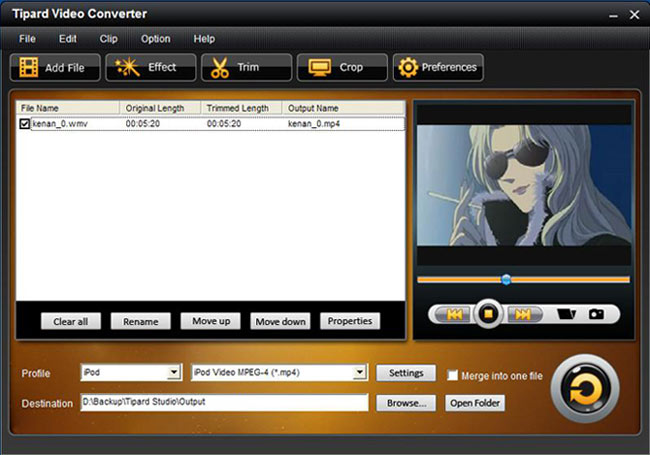
Tipard [url=http://www.tipard.com/video-converter.html]Video Converter[/url] supports the mutual conversion between all video formats for you to enjoy the on-line abundant video sources on your portable devices.
Input Formats: MPG, MPEG, MPEG2, VOB, MP4, M4V, RM, RMVB, WMV, ASF, TS, MKV, AVI, 3GP, FLV, MPV, MOD, TOD, MP3, MP2, AAC, AC3, WAV, MID, MIDI, WMA, M4A, RA, RAM .
Output Formats: MP4, H.264, AVI, MP3, WMV, WMA, FLV, MKV, MPEG-1, MPEG-2, 3GP, 3GPP, VOB, DivX, Mov, RM, RMVB, M4A, AAC, WAV, OGG, RA, M4A, MP3, AC3, AAC, WMA, WAV, OGG.
It also possesses strong editing functions of clipping video segments, cropping the video play region, capturing your favorite pictures and joining your selected contents into one file.
Free download the best [url=http://www.tipard.com/download/video-converter.exe]Video Converter[/url] and have a try!

[img]http://www.tipard.com/guide/tipard-video-converter/import.jpg[/img]

Key Features:
﹡Support the mutual conversion between all video formats.
﹡Set video effect of brightness, contrast and saturation.
﹡Set Deinterlacing
﹡Extract audio from video files.
﹡Trim your video length.
﹡Crop the play region
﹡Merge into one file


wpreherb
kjhkjhl
[ Scorecard : 23]
Posted On 17 July 2009 at 15:13

Tipard Video Converter supports the mutual conversion between all video formats for you to enjoy the on-line abundant video sources on your portable devices.
Input Formats: MPG, MPEG, MPEG2, VOB, MP4, M4V, RM, RMVB, WMV, ASF, TS, MKV, AVI, 3GP, FLV, MPV, MOD, TOD, MP3, MP2, AAC, AC3, WAV, MID, MIDI, WMA, M4A, RA, RAM .
Output Formats: MP4, H.264, AVI, MP3, WMV, WMA, FLV, MKV, MPEG-1, MPEG-2, 3GP, 3GPP, VOB, DivX, Mov, RM, RMVB, M4A, AAC, WAV, OGG, RA, M4A, MP3, AC3, AAC, WMA, WAV, OGG.
It also possesses strong editing functions of clipping video segments, cropping the video play region, capturing your favorite pictures and joining your selected contents into one file.
Free download the best Video Converter and have a try!


Key Features:
﹡Support the mutual conversion between all video formats.
﹡Set video effect of brightness, contrast and saturation.
﹡Set Deinterlacing
﹡Extract audio from video files.
﹡Trim your video length.
﹡Crop the play region
﹡Merge into one file


Total thanks : 1 times


Ravi kumar...A Big Fan of Admin
Article Assistant
[ Scorecard : 601]
Posted On 18 July 2009 at 14:29

thnx


Smith Alexander
PR
[ Scorecard : 22]
Posted On 20 July 2009 at 07:42

Here is a free tool for converting PowerPoint to MP4 video (YouTube video):

Acoolsoft PPT2YouTube is a completely free tool which helps users easily convert fantastic PowerPoint to YouTube video for free. All you need to do is to import your PowerPoint files and click Start, after that, this PPT2YouTube tool will automatically convert PowerPoint to MP4 for free with animations, transitions, sounds and video clips retained. And then you can effortlessly upload it to YouTube for wide sharing.


shirleyyang
dance
[ Scorecard : 22]
Posted On 28 September 2009 at 11:59

How can I convert PPT to FLV? Using PPT to FLV Converter, you can quickly and easily convert PPT to FLV, uploading your wonderful Powerpoint files to the websides. Compared with other software, this PPT to FLV Converter provides faster speed and higher output quality. Besides converting PPT to FLV, this PPT to FLV Converter allows you to convert PPT to other common formats, like avi, mov, mp4, 3gp, etc.

www.convertflv.biz/convert-ppt-to-flv.html


itsme
hntshm
[ Scorecard : 26]
Posted On 09 October 2009 at 17:39

Hi

as for me I use VideoPPT ( videoppt.com)


Fleench
student
[ Scorecard : 24]
Posted On 26 November 2009 at 20:21

Good tools. But I use Presentation to Video Converter and I like this program.


Related Files


Previous Thread Next Thread


Related Threads


Post your reply for Convert PPT to Video


Your are not logged in . Please login to post replies

Click here to login


Not a member yet ?? Click here to signup

Message